 .----------------.  .----------------.  .----------------.
| .--------------. || .--------------. || .--------------. |
| |  ________    | || |  _________   | || |  ____  ____  | |
| | |_   ___ `.  | || | |_   ___  |  | || | |_  _||_  _| | |
| |   | |   `. \ | || |   | |_  \_|  | || |   \ \  / /   | |
| |   | |    | | | || |   |  _|      | || |    > `' <    | |
| |  _| |___.' / | || |  _| |_       | || |  _/ /'`\ \_  | |
| | |________.'  | || | |_____|      | || | |____||____| | |
| |              | || |              | || |              | |
| '--------------' || '--------------' || '--------------' |
 '----------------'  '----------------'  '----------------'

       DarknessFX @ https://dfx.lv | Twitter: @DrkFX
Tool for manage Unreal Engine Plugins (.uplugins) set to Enabled By Default .
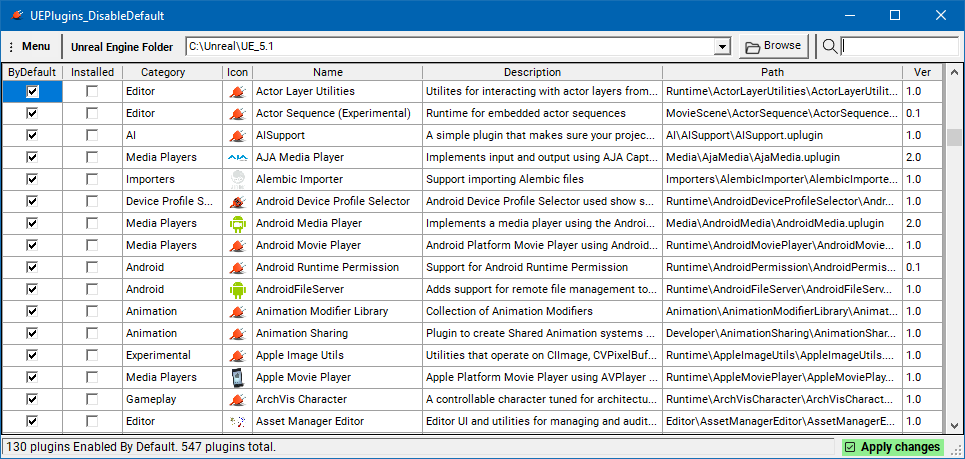
Unreal Engine have around 100+ plugins enabled by default. To disable one of those plugins you need to look for the respective .uplugin file and change the property "EnabledByDefault": true to false, this tool is made to easier manage this setting.
Project info/blog at https://dfx.lv/UEPlugins_DisableDefault .
When you install (or build) Unreal Engine in your computer, it comes with almost 500 plugins ( UEFolder\Engine\Plugins ). Plugins expand Unreal Engine features to include VR, AR, ArchViz, VirtualProduction, Mobile, Import/Export formats, Movie and Audio codecs, Python and more, you can enable or disable plugins per project when you need these features and you can also install more plugins from open source or Unreal Marketplace.
Around 140+ plugins are always enabled (EnabledByDefault) in UE5, to verify you can create a NewProject, go to Tools > Plugins > Settings > Show Only Enabled.
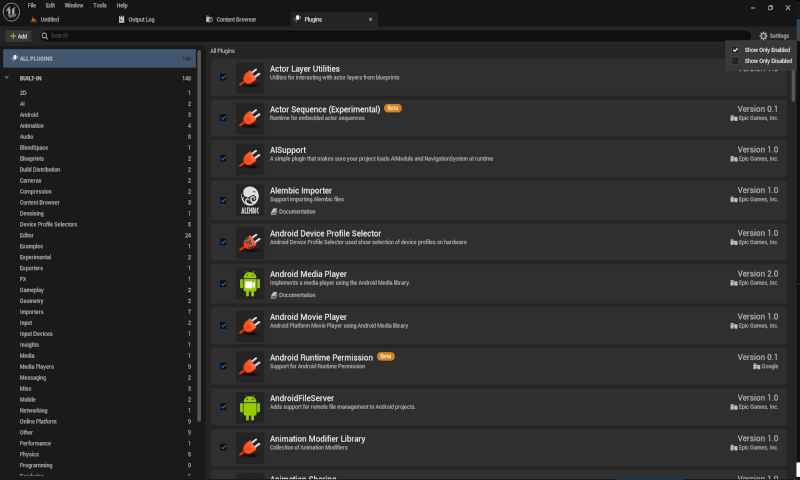
You can manually disable plugins using the Plugin Browser but because they're EnabledByDefault everytime you create a new project you need to disable again, some common plugins that you maybe want to keep always disabled are ArchViz Character, Apple/Mac/iOS, Linux, Android, Hololens, MagicLeap, Steam and Oculus VR, AR, AudioCapture, IDE integration.
In UE4 some plugins like SteamVR display a warning popup (Headset not detected) eveytime you open a project and it was annoying ( like described in this thread ).
The only way to change plugins EnabledByDefault is to manually change the .uplugin file descriptor for every plugin you want to disable, UEFolder\Engine\Plugins have 18.000+ subfolders, you can spend some time searching to find where the .uplugin you want to disable is located. And later when you update your UE version, all your changes are wasted because the update overwrite .uplugins to default again.
Because this changes are made in the Engine\Plugins, there are other benefits in changing .uplugins settings because this changes only affect your Engine installation, for example you can EnabledByDefault plugins that you want always enabled, like RenderDoc, DFoundryFX, ElectronicNodes and this changes won't affect the .uproject file and is invisible to other devs that share the same .uproject.
UEPlugins_DisableDefault tool provide a better way to manage EnabledByDefault settings of Unreal Engine plugins.
Requirements
- Visual Studio 2019 or 2022
- C++/CLI (open Visual Studio Installer > Individual Package > Search "C++/CLI", Add "C++/CLI support for v143 build tools (Latest)".
Download this project:
- Via ZIP file, download the Project as Zip and unzip to your desired folder.
- Via Git clone, from "Command Prompt" or "Windows Terminal", go to your desired folder and execute
git clone https://github.com/DarknessFX/UEPlugins_DisableDefault
From project source folder, open UEPlugins_DisableDefault.sln in Visual Studio and menu Build > Build Solution (shortcut Ctrl+Shift+B).
Download the latest UEPlugins_DisableDefault.exe in the Relases page (UEPlugins_DisableDefault.zip).
You can also debloat the Engine by moving full plugin folders out of Engine\Plugins into a backup folder and restoring them later. How to use:
- Run the tool from \XDevops or a child folder under XDevops.
- Use Backup Folder and Select to choose where removed plugins will be stored.
- The selected backup path is saved to ueplugins_config.ini next to the executable.
- In the plugin table, tick the Remove checkbox for the plugins you want to offload.
- Press Remove Selected to move each selected plugin folder from Engine\Plugins... to the backup folder while preserving its relative path.
- Press Restore All to move backed up plugin folders from the backup folder back into Engine\Plugins....
Icon: DefaultIcon128.png from Unreal Engine by Epic Games.
Icon: Microsoft FluentUI System Icons - https://github.com/microsoft/fluentui-system-icons
Font : Roboto-Regular by Christian Robertson - https://fonts.google.com/specimen/Roboto
Repo: https://github.com/DarknessFX
@MIT - Free for everyone and any use.
DarknessFX @ https://dfx.lv | Twitter: @DrkFX
https://github.com/DarknessFX/UEPlugins_DisableDefault
X: <a href=" https://x.com/andkalysh