iOS companion app for LosslessSwitcher
This is an iOS companion app for the Network Server version of the LosslessSwitcher macOS app: https://github.com/Robertsmania/LosslessSwitcherNetworkServer
That project is a fork of the LosslessSwitcher project: https://github.com/vincentneo/LosslessSwitcher
You can clone or download the source code from a release, then build and run it on your iOS device from Xcode.
Or, you can get the LosslessSwitcherRemote iOS app from TestFlight.
Use this URL to join the beta test and download the app:
https://testflight.apple.com/join/QDtXe7tV
I will do my best to keep the TestFlight version in sync with whats here on GitHub.
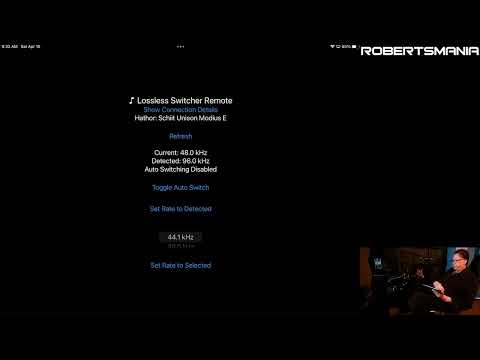
Here is a video of the LosslessSwitcher Remote iOS app in use:
If you start the iOS app with no servers running this is the screen you get. You can manually refresh and look for servers, but if none are running on your network this is as far as it goes:

When you run the network enabled version of LosslessSwitcher, it appears on the network and the iOS app will detect it. If it is the only service discovered, the iOS app will connect to it automatically. This screen shows the Manage Connection Details screen where you can see all the discovered services and pick the one you want to connect to:

This is the main UI when the app is in use:

- At the top it shows the currently connected host name and the output device.
- You can click the Show Connection Details button to get the screen above which shows all the discovered services and lets you connect to a different service.
- The Refresh button updates all the data from the server, but is not normally needed as all the operations will update the UI with data that comes back from the server after any operation has been executed.
- The current and detected frequency rates are shown along with the current status of the auto-switching option.
- The buttons below that do pretty much what they say:
- Toggle Auto Switch turns on or off the auto switch feature. When it is off, LosslessSwitcher will show the detected frequency rate, but the current setting will not change unless you use one of the manual options.
- Set Rate to Detected - mostly useful if auto switching is disabled.
- The picker shown has the supported frequency rates for the current output device. You can select one and use the Set Rate to Selected button to apply it.
It supports multiple devices and multiple servers. Each iOS device can select which server it wants to control and the servers do a best effort to send updates to all clients that are connected to them.